Automatic Wi-Fi Switching
INVLocal can automatically switch between your local network connection and Tailscale depending on which Wi-Fi network your phone is connected to. When you’re at home it connects directly; when you’re away it routes through Tailscale.
How it works
Section titled “How it works”You register your home Wi-Fi network(s) in INVLocal. When your phone is connected to a known network, INVLocal connects to your inverter directly using the local IP. When on any other network, it connects via Tailscale automatically - no manual switching needed.
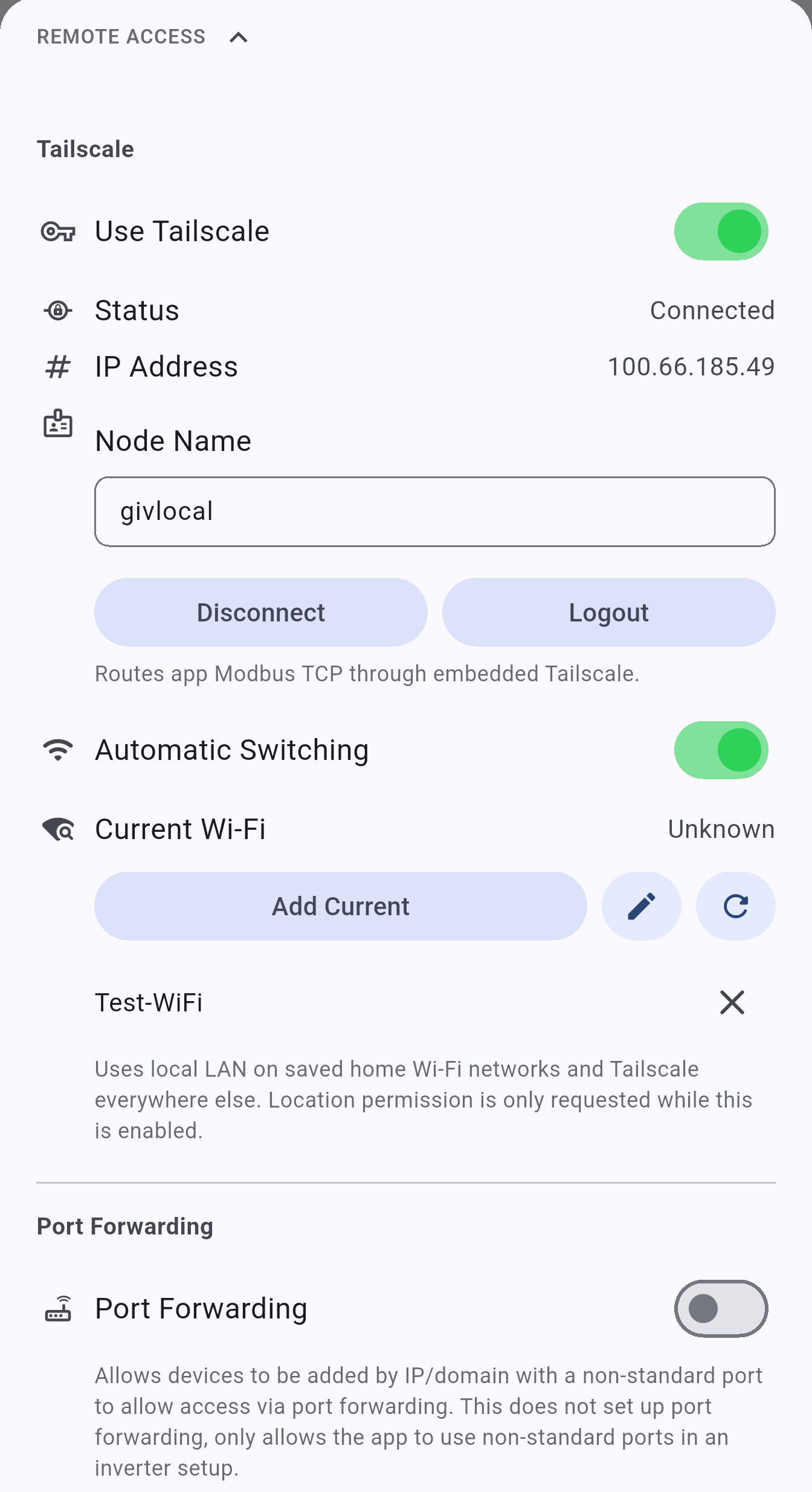
Automatic Switching lives inside the Tailscale block of the Remote Access section, not on a separate screen - it only appears once Use Tailscale is turned on.
- Open Settings → Remote Access and turn on Use Tailscale
- Turn on the Automatic Switching toggle
- Grant the Location permission if prompted
- Tap Add Current to register the Wi-Fi network your phone is on right now, or tap the pencil icon next to it to enter an SSID manually
- Your registered networks are listed with a close icon to remove them individually
Once enabled, INVLocal handles the switch transparently whenever you move between networks.
INVLocal is an independent product. It is not affiliated with, endorsed by, or supported by GivEnergy. GivEnergy is a trade mark of its owner and is used here only to describe hardware compatibility.