Diagnostics & Advanced
Open Settings → Diagnostics for tools to diagnose connection problems and tune how INVLocal communicates with your hardware.
Support Bundle
Section titled “Support Bundle”Captures a register dump from each connected inverter (plus a combined plant dump if you have more than one), together with the debug log, and zips them into a single file ready to share with support. This is the fastest way to get INVLocal-side and inverter-side diagnostic data to support in one step, rather than exporting the debug log on its own.
Connection Benchmark
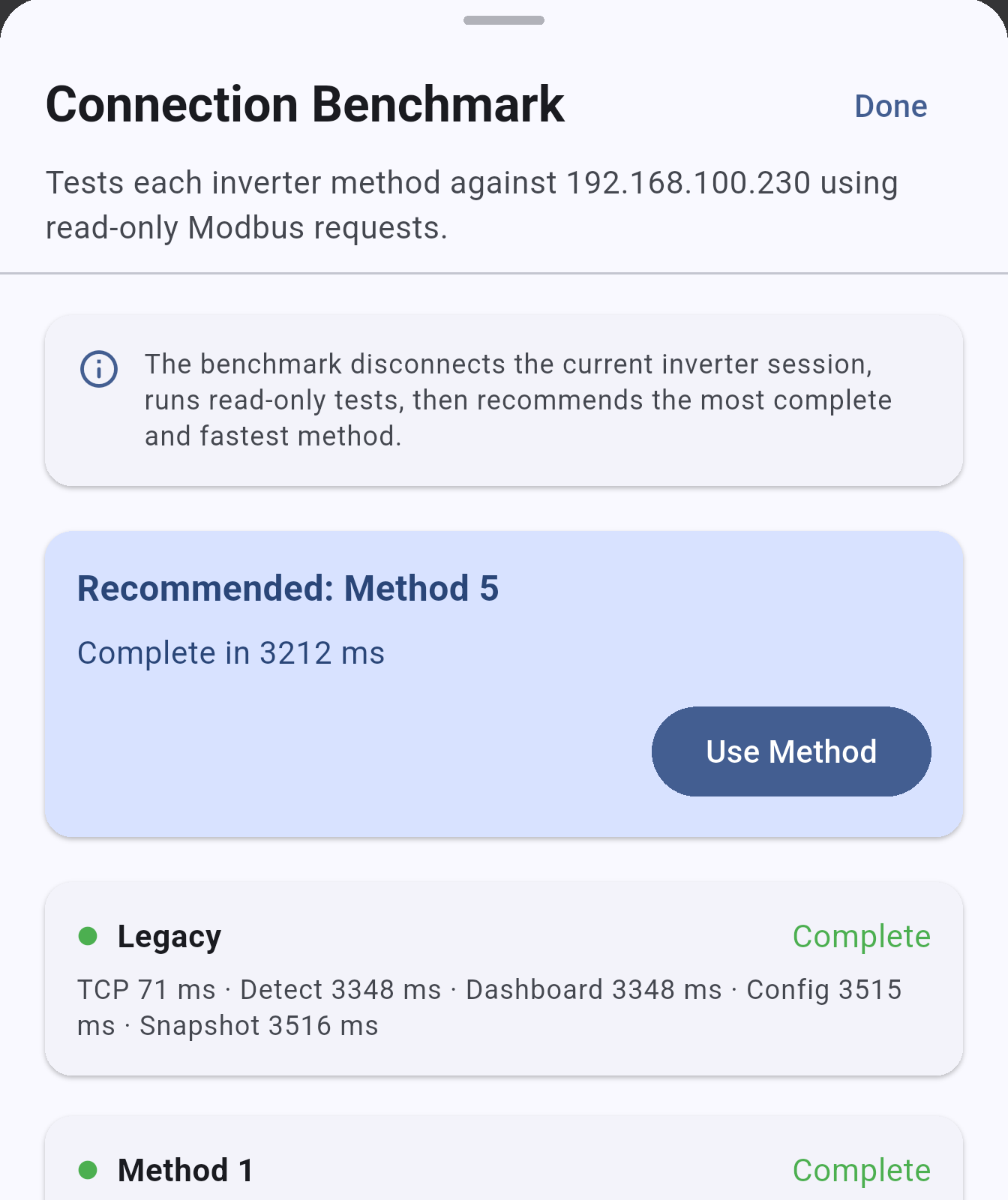
Section titled “Connection Benchmark”Tests each available connection method against your inverter and recommends the best one for your hardware and network.
- Open Settings → Diagnostics → Connection Benchmark
- Tap Run Benchmark
- INVLocal will test each method in turn
- The recommended method is highlighted - tap Apply to use it
Previous benchmark results are shown so you can compare across sessions.
Inverter Method
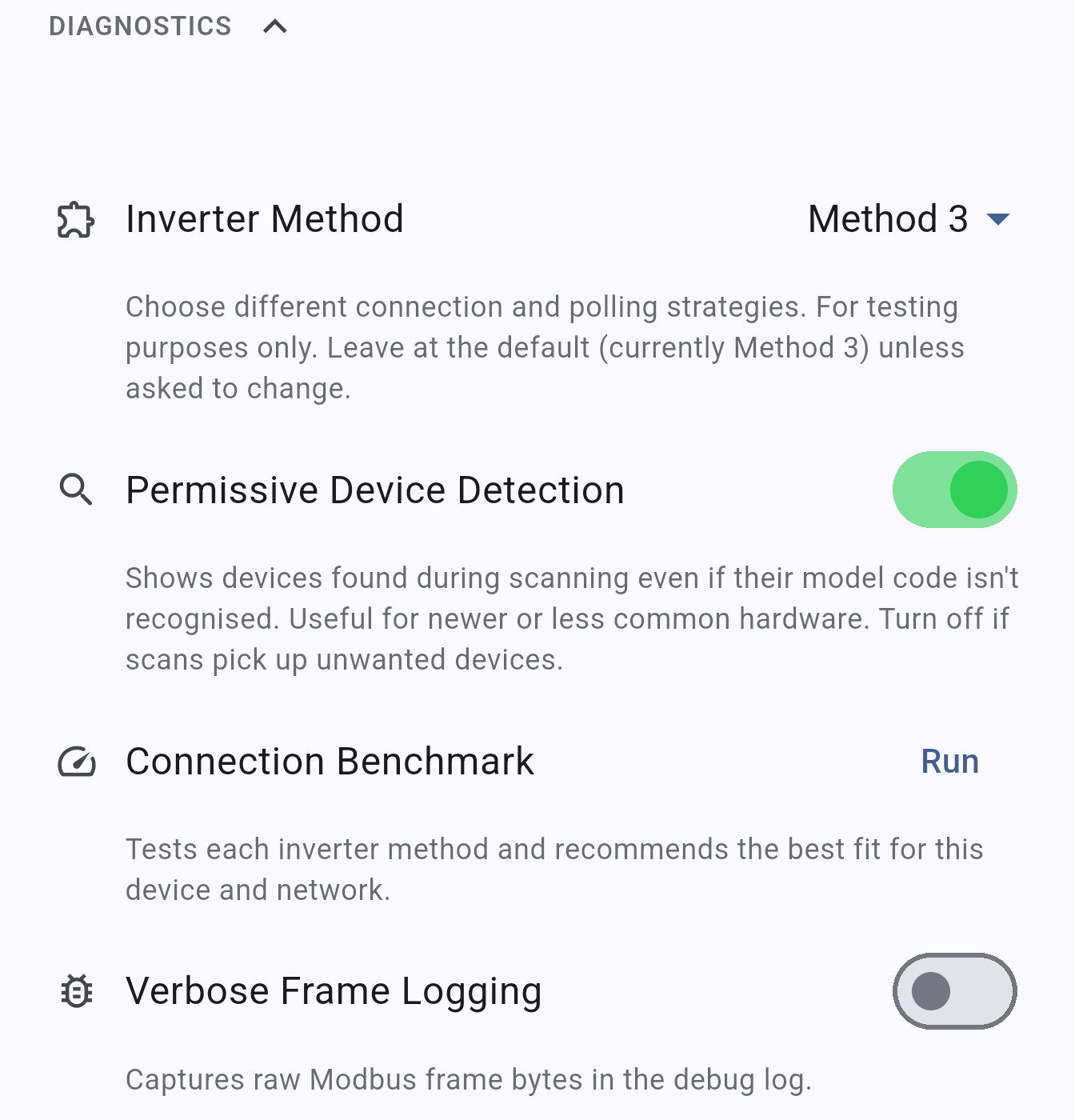
Section titled “Inverter Method”Selects the connection strategy INVLocal uses to communicate with your inverter. Method 3 is the default and works for most devices. If you experience connection issues, run the Connection Benchmark to find the best method for your setup.
Permissive Device Detection (NOTE: This setting is removed in version 1.0.5 and later)
Section titled “Permissive Device Detection (NOTE: This setting is removed in version 1.0.5 and later)”When enabled, the Devices screen showed hardware found during scanning even if its model code wasn’t recognised by INVLocal. This was useful for newer or less common GivEnergy hardware that wasn’t yet explicitly known to the app.
Verbose Frame Logging
Section titled “Verbose Frame Logging”When enabled, INVLocal captures the raw bytes sent and received in each communication with the inverter. This is primarily useful for bug reports or diagnosing unusual behaviour.
Debug Log
Section titled “Debug Log”INVLocal maintains an internal debug log that can be exported for troubleshooting. Use Export next to Debug Log to share it, or Clear next to Clear Log to reset it.
INVLocal is an independent product. It is not affiliated with, endorsed by, or supported by GivEnergy. GivEnergy is a trade mark of its owner and is used here only to describe hardware compatibility.