Dashboard Settings
Open Settings → Dashboard to customise how the Dashboard looks and behaves.
Options
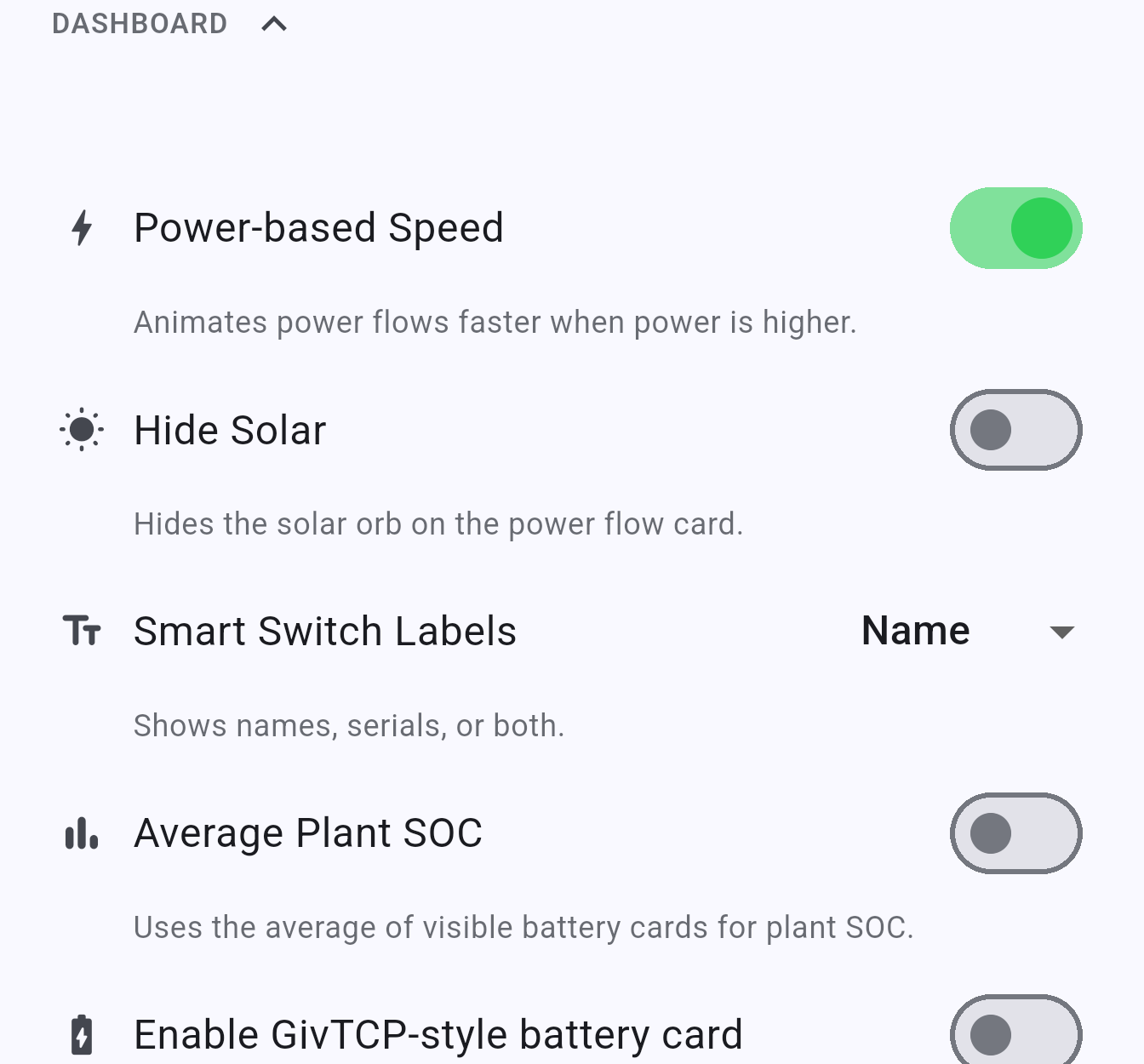
Section titled “Options”Power-based Speed (NOTE: This setting is removed in version 1.0.5 and later)
Section titled “Power-based Speed (NOTE: This setting is removed in version 1.0.5 and later)”When enabled, the animated dots on the power flow diagram move faster when more power is flowing. Gives a more intuitive sense of how much energy is being moved. Enabled by default.
Hide Solar
Section titled “Hide Solar”Hides the solar orb from the power flow card. Useful if you don’t have solar panels and want a cleaner layout.
Smart Switch Labels
Section titled “Smart Switch Labels”Controls what is shown on the device tabs at the top of the Dashboard:
| Mode | Description |
|---|---|
| Name | Shows the device type (e.g. Gateway, All In One) |
| Serial | Shows the device serial number |
| Both | Shows name and serial number |
Average Plant SOC
Section titled “Average Plant SOC”When enabled, the SOC shown on the power flow diagram uses the average state of charge across all visible batteries, rather than the highest. Useful for multi-battery systems where you want an overall picture.
Enable GivTCP-style battery card (NOTE: This setting is removed in version 1.0.5 and later)
Section titled “Enable GivTCP-style battery card (NOTE: This setting is removed in version 1.0.5 and later)”Adds an optional battery summary card in the style used by GivTCP, showing capacity, charge/discharge totals, and timing estimates on a single card. Swipe the battery card area on the Dashboard to access it.
Show implausible BCU values
Section titled “Show implausible BCU values”Shows battery cell unit (BCU) lifetime charge and discharge totals on the battery detail view even when they are implausibly different from each other. Off by default - INVLocal asks for confirmation the first time you enable it, since the figures may not be reliable.
Reset Dashboard Layout
Section titled “Reset Dashboard Layout”Restores all inverter and EV charger widgets and their default portrait and landscape layouts. Use this to undo widget customisation done via long-press on the Dashboard - see Customising the Dashboard.
INVLocal is an independent product. It is not affiliated with, endorsed by, or supported by GivEnergy. GivEnergy is a trade mark of its owner and is used here only to describe hardware compatibility.